Query Plan Tracing
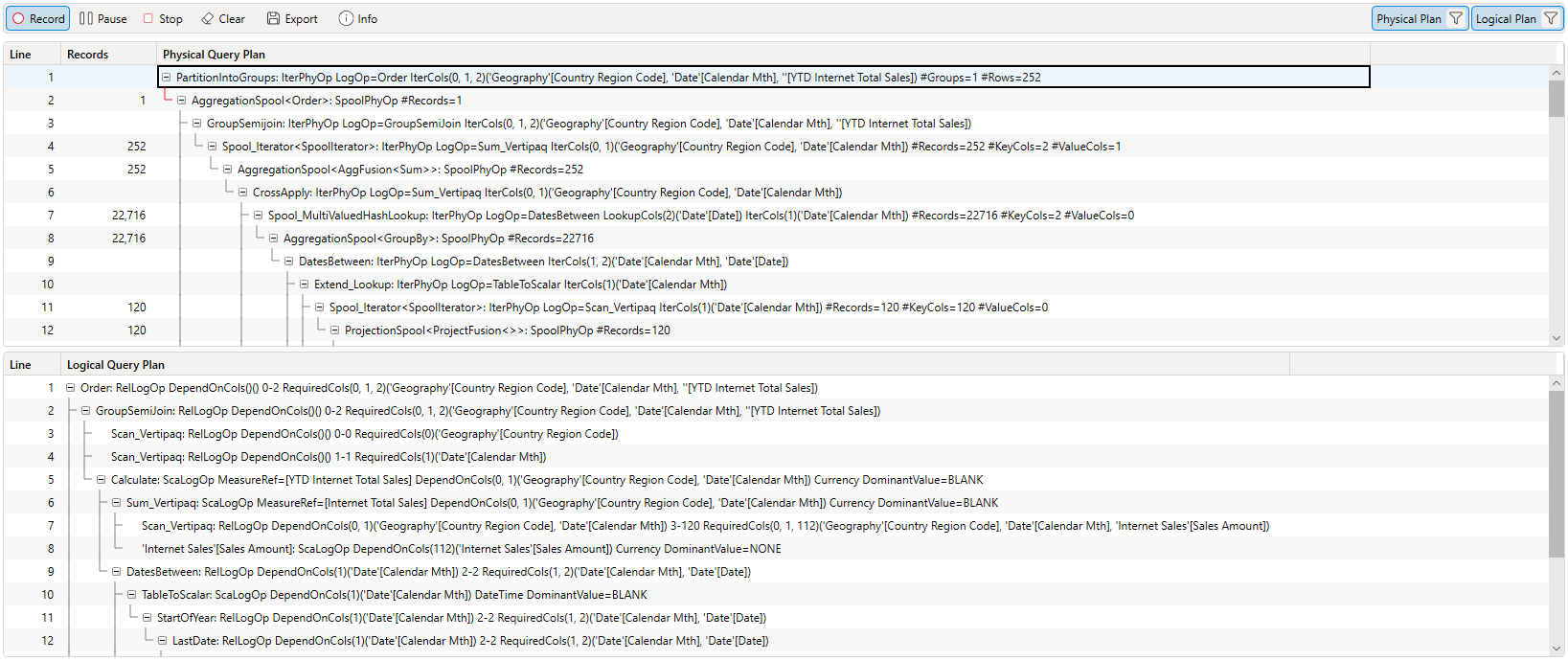
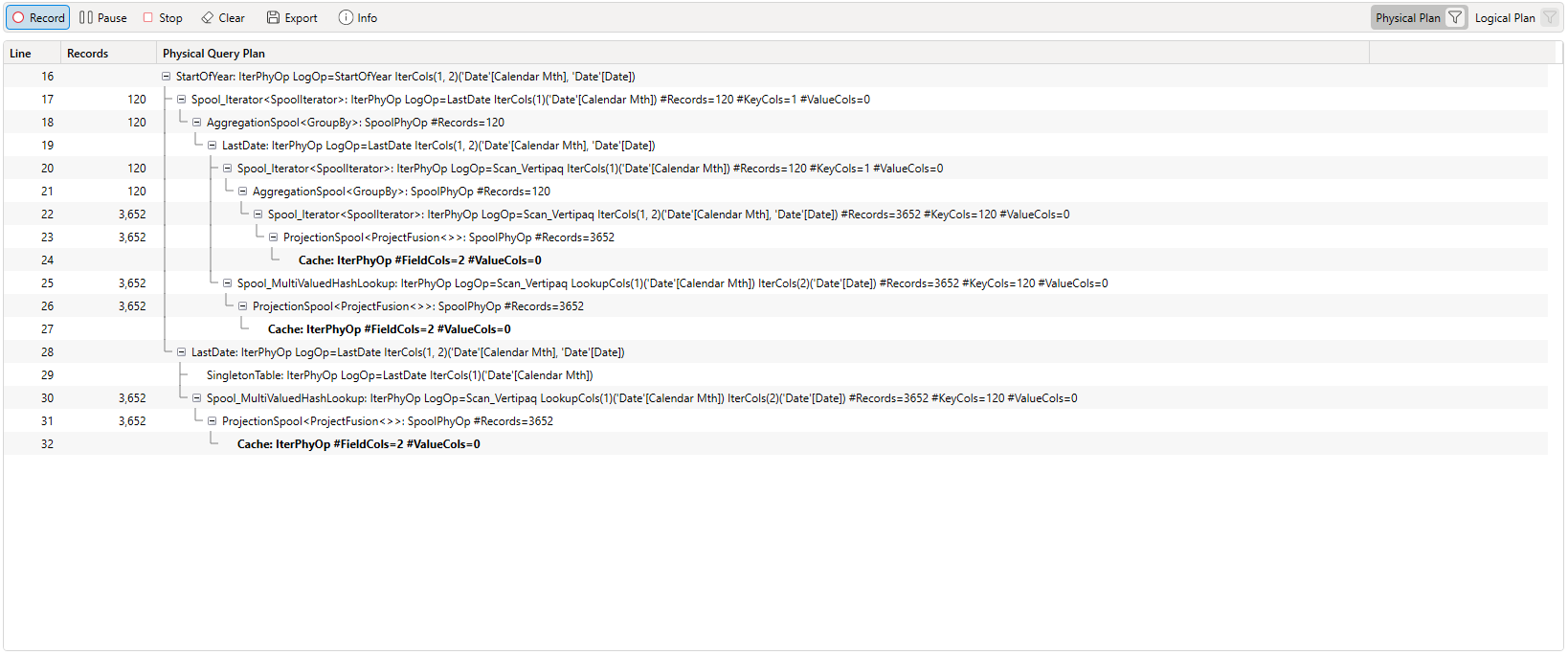
DAX Studio supports capturing the query plan trace events from a SSAS Tabular server and displaying them.
The events are displayed in a tree view that allows you to expand and collapse to help with navigating around large query plans
Toggling Visibility
You can use the buttons in the top right to turn off one of the plans (Physical or Logical)
Copying Rows
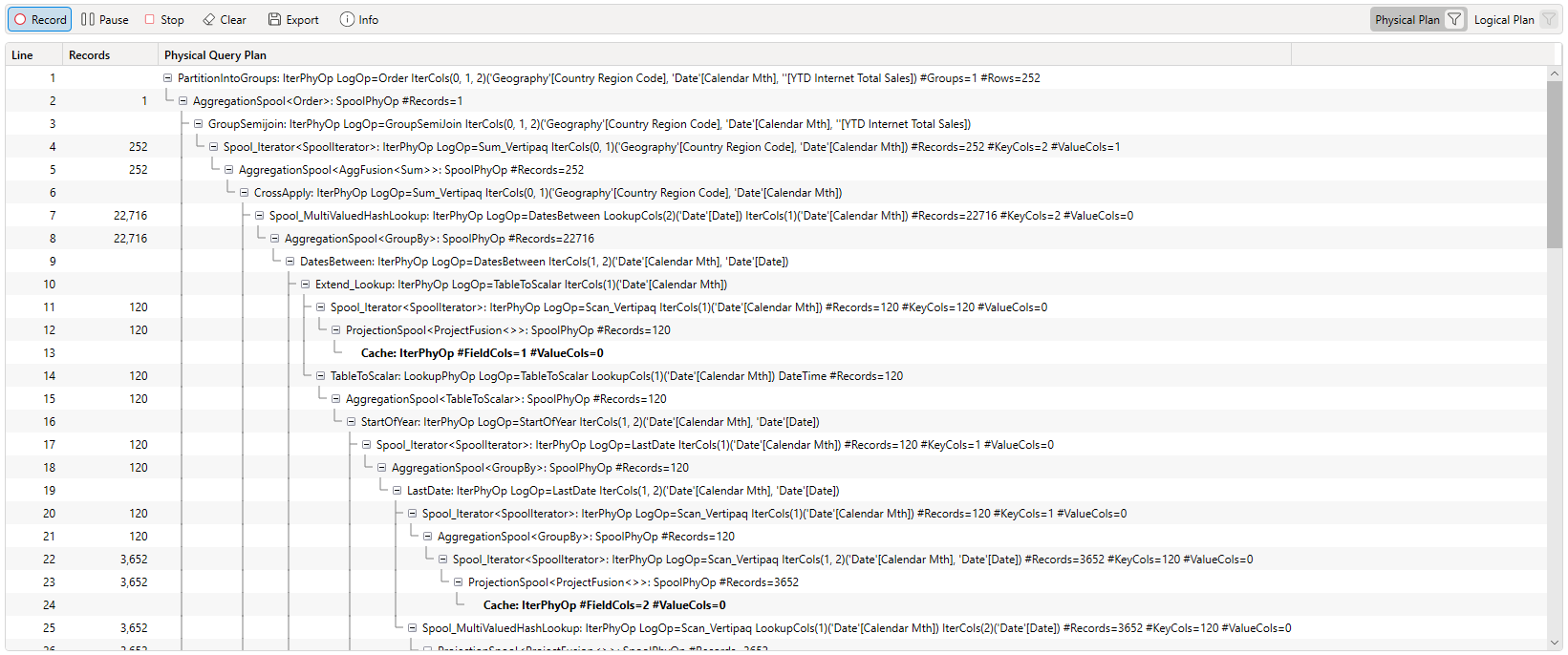
The Physical and Logical Query Plan grids support selecting multiple rows. Use shift-click to select a range of rows (or ctrl-click to select individual rows) and then press Ctrl+C to copy them to the clipboard.
Descendant Rowcounts
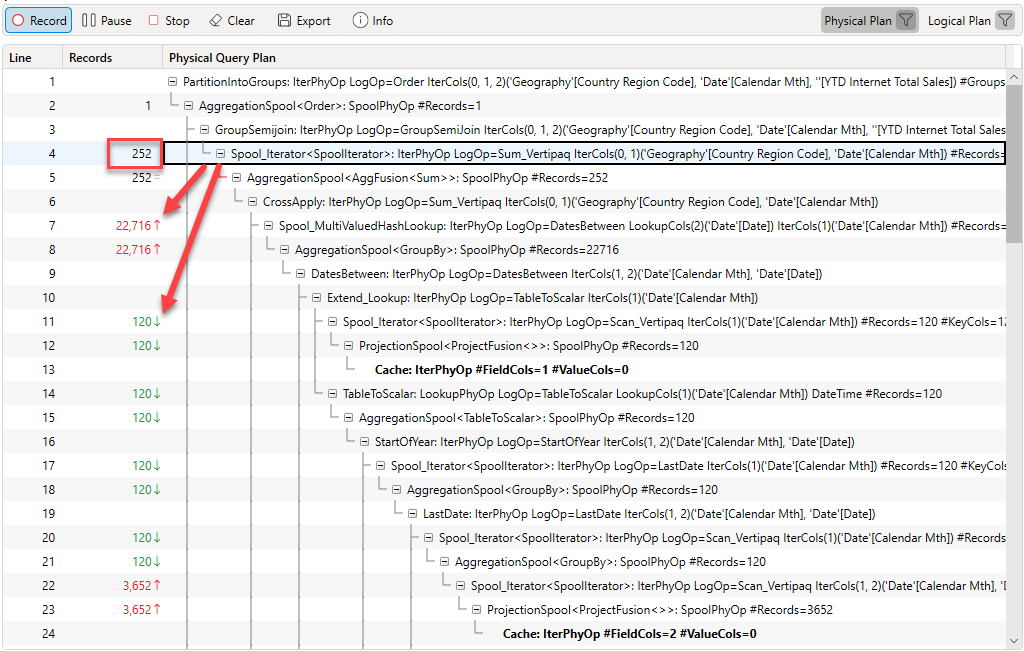
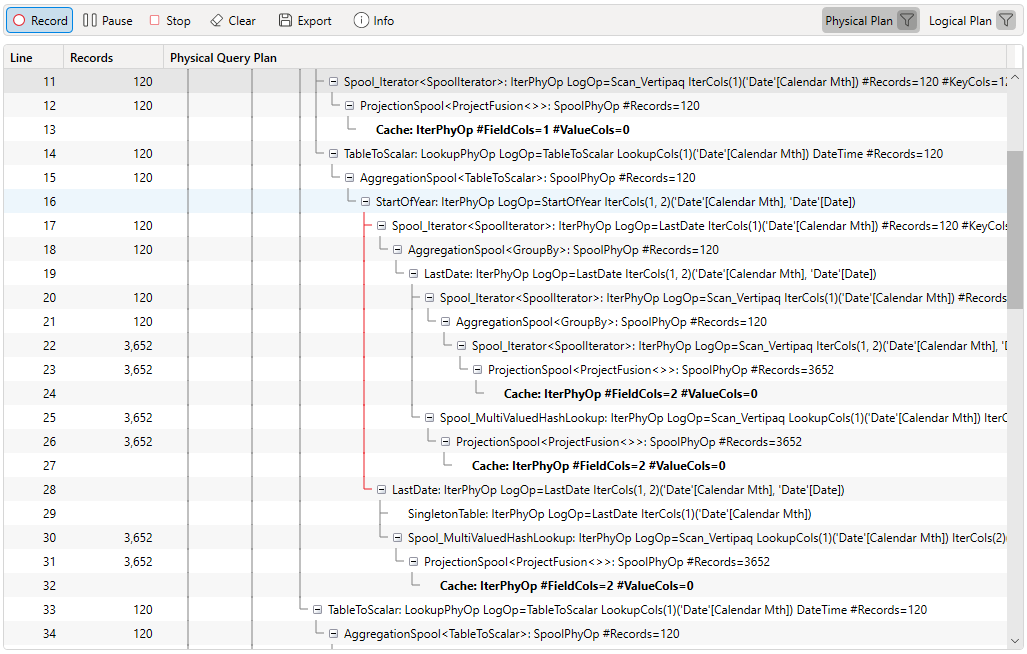
When you click on a row in the Physical Plan that has a row count the rowcounts of any descendant items will be highlighted and will have an up/down/equals indicator. This can help you see if the particular item has a descendant operation that is iterating or filtering over a much larger dataframe.
Descendant Line Highlighting
Clicking on a row will also highlight the descendant line for that row to ma
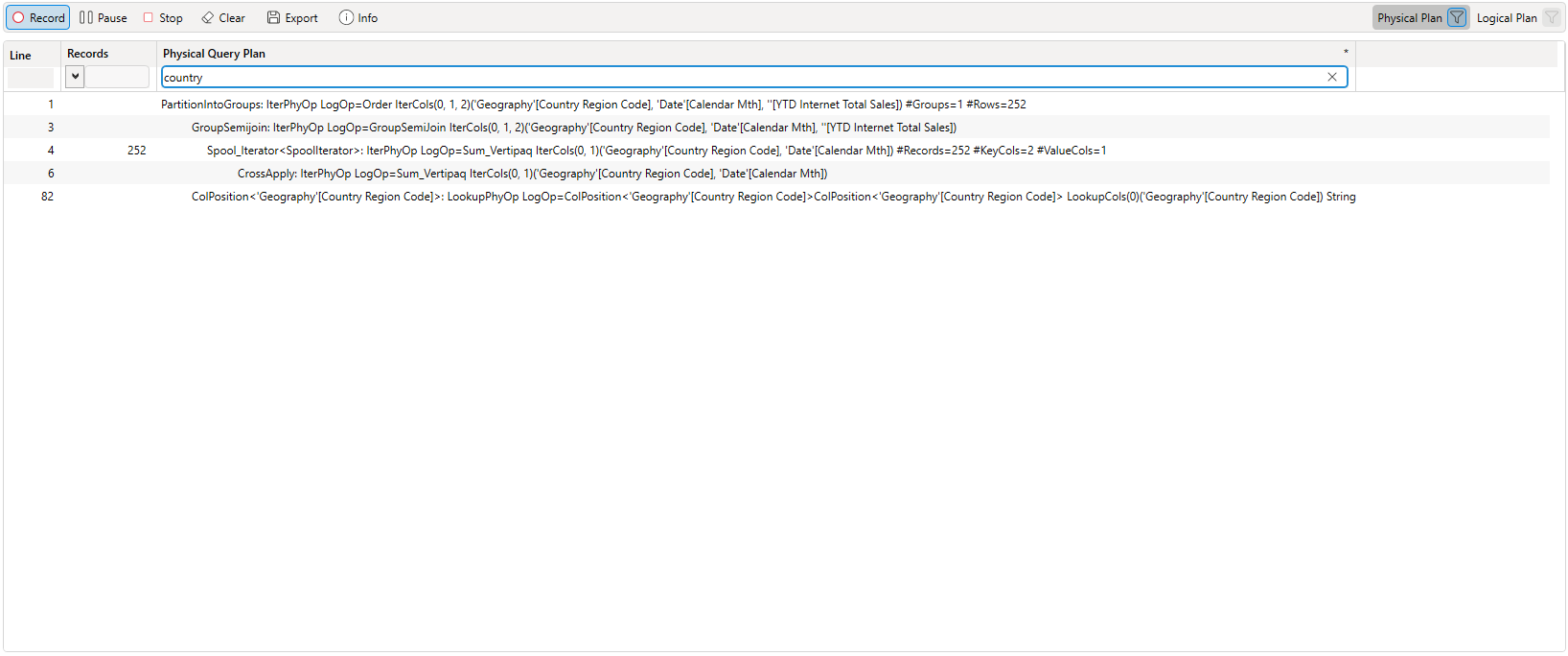
Filtering
You can apply text or rowcount filters to the query plan
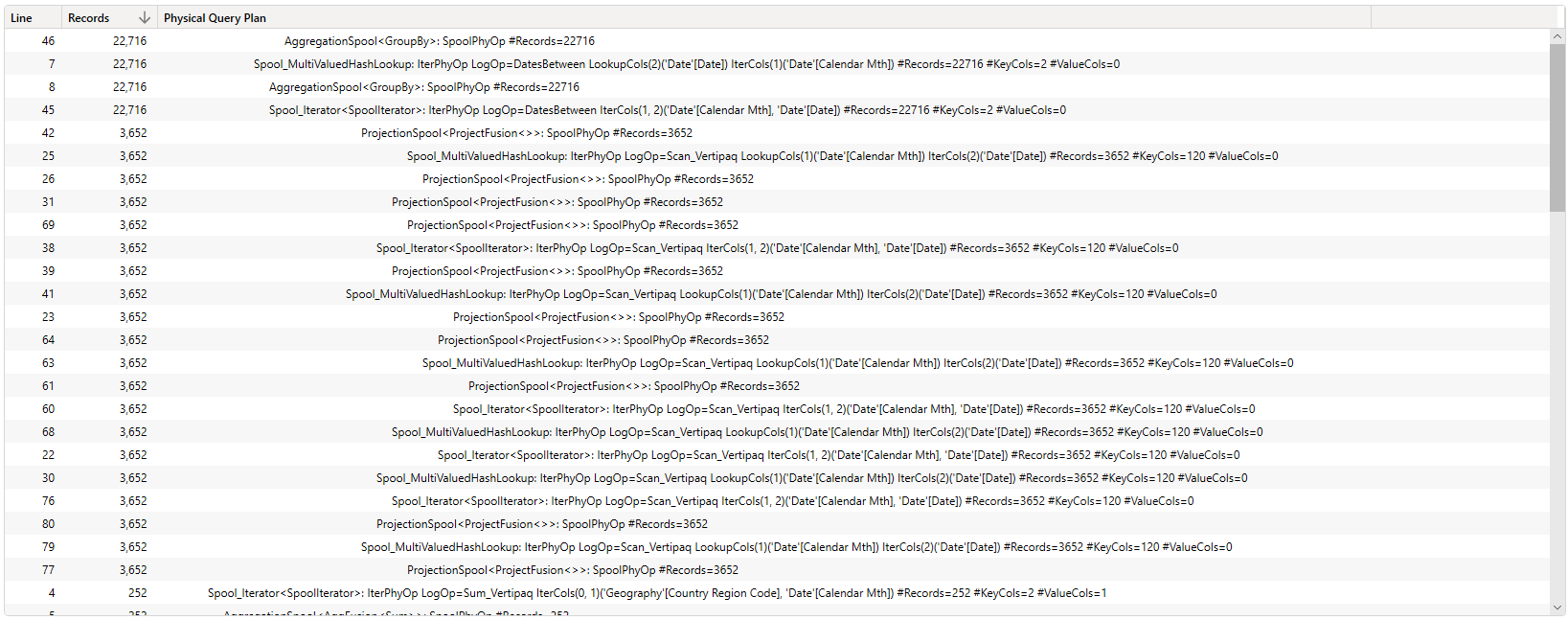
Sorting
You can sort the query plan by the other columns. Note that when you do this the expand / collapse options are hidden as they no longer make sense. You can get back to the expand/collapse view by sorting on the Line column.
Drill in/out
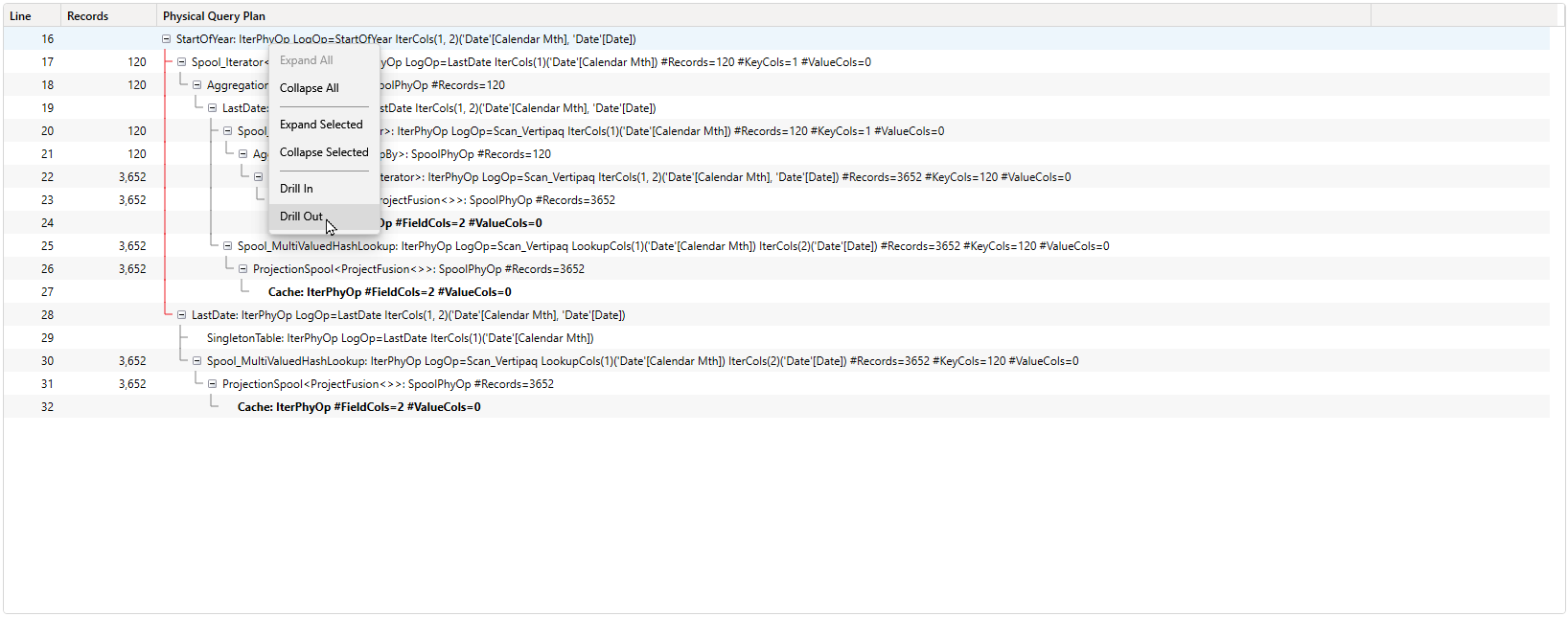
If you want to focus on a particular subset of the plan you can right click and "drill in" to that section
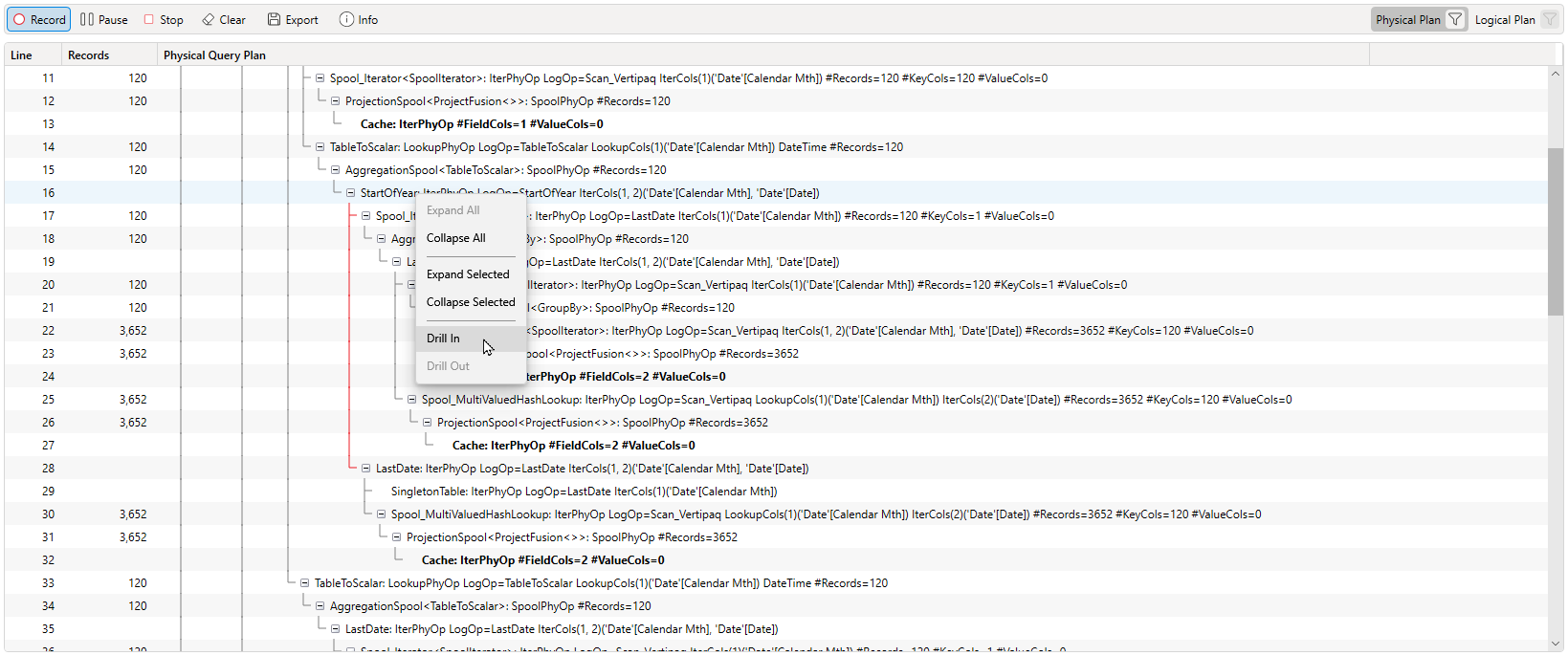
This will limit the display to just that row and any descedant rows. DAX Studio maintains a stack of drill-in operations so you can repeat the Drill in multiple times and then step back out using the Drill out option
The right-click option to drill out is enabled when you have drilled in one or more times